
Once your admin enables your your account with multi-factor authentication (MFA) you have to set up your user account to use it.
By setting up MFA, you add an extra layer of security to your Microsoft 365 account sign-in. You can read more about multi-factor authentication here: What is: Multifactor authentication
You must start the process on a computer and then use the Authenticator app on your phone.
Do not attempt to setup MFA before your administrator has enabled it
-
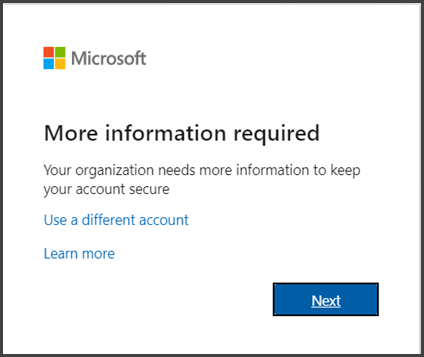
Use your computer to sign in to Microsoft 365 at www.office.com with your work email address and password like you normally do. If you are already signed in, log out and back in again. After you choose Sign in, you'll be prompted for more information. Make sure you follow the on-screen prompts exactly.
-
Press Next.
-
The default and best authentication method is to use the free Microsoft Authenticator app which should already be installed on your iPhone. When prompted, open the app on your phone but do not login. Instead, follow the prompts on the computer to scan the QR code to add this account. If you don't have it installed there is a link provided to download it.

If you would rather use SMS messages sent to your phone instead, select I want to set up a different method. Microsoft 365 will ask for your mobile number, then send you an SMS message containing a 6-digit code to verify your device. For a faster, and more secure, experience we recommend using an authenticator app rather than SMS verification.
Download link: https://www.microsoft.com/en-us/account/authenticator -
Once you complete the instructions to specify your additional verification method, the next time you sign in to Microsoft 365, you'll be prompted to approve the login using the authenticator app.
Note: Generally you'll only need the additional verification method the first time you sign into a new app or device, or after you've changed your password.
If you have applications that don't support an additional verification, you must set up an app password. See manage app passwords for more information.
Comments
0 comments
Please sign in to leave a comment.