
Follow these instructions to help us comply with regulation and enhance your data security and privacy. Make sure that you have your phone registered and the authenticator app is setup as explained below.
The process may seem tedious but it only takes 2 minutes (we measured) and will greatly enhance the security of your data. Once you have setup your security info we will be able to enable a 'forgot my password' feature and password-less logins.
- On your computer go to https://mysignins.microsoft.com/security-info (if asked, sign-in with your Office 365 email and password)
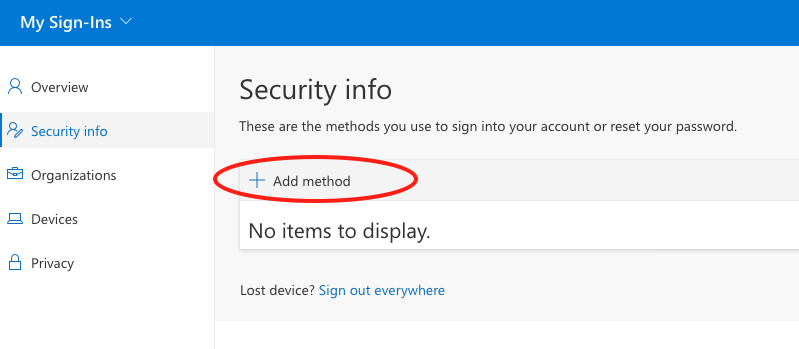
- Click Add Method
- Select Authenticator App (this should already be installed on your iPhone, if not then download the Microsoft Authenticator app yourself - Apple AppStore, Google Play)
- Click Add and then Next and another Next – until you see the QR code screen like the sample below
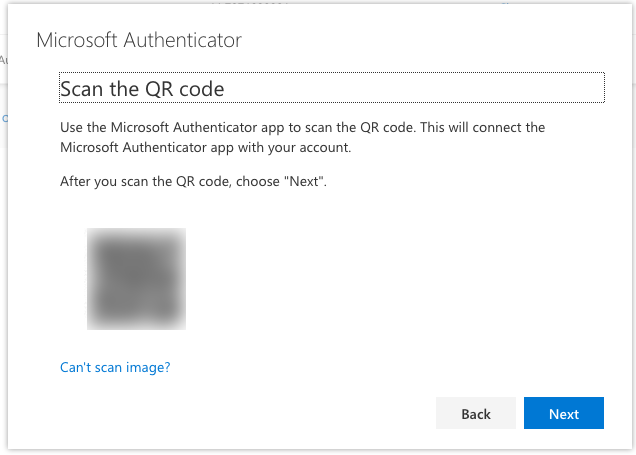
- On your iPhone open Authenticator and add a new Work account

- Point the phone camera at your computer screen to scan the QR code
- Return to your computer and press Next again
- Approve the sign-in on your phone and back on your computer click Next
- Back on the main Security Info screen click Add method again
- Select Phone and click Add
- Select your country code and enter phone number. Select Text me a code and complete the steps to register your phone
The final setup: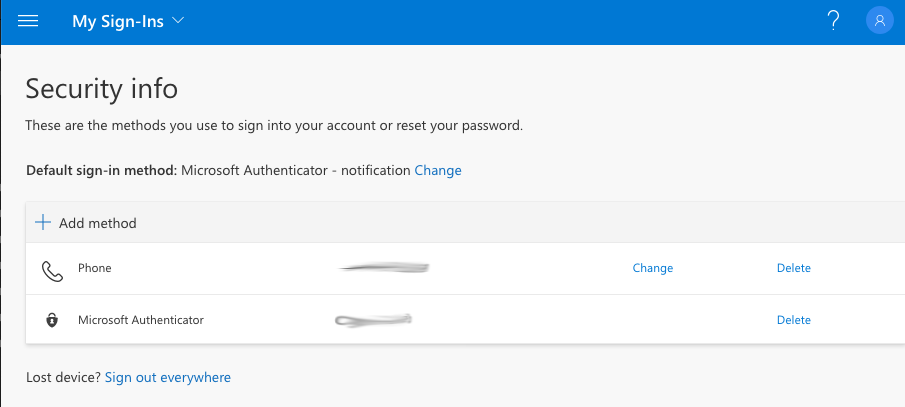
Comments
0 comments
Please sign in to leave a comment.