
Follow the steps below to view and optionally remove large attachments without deleting the actual messages that contain them. This is especially useful for Sent messages.
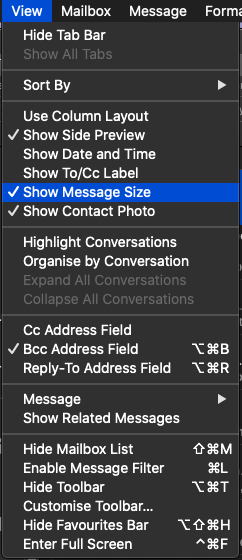
1. Enable Show Message Size from the View menu in Mail
2. Disable Organise by Conversation from the same menu
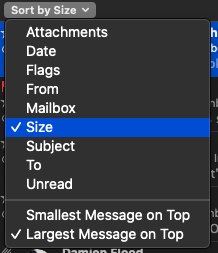
3. Select the mailbox you want to work on (typically the Sent mailbox) and then Sort by Size from the message list menu. Make sure Largest Message on Top is selected.
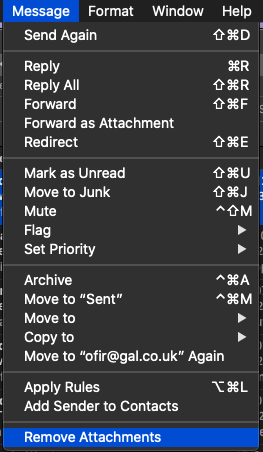
4. Select a message that contains an attachment you want to remove and then select Remove Attachments
5. You can select the next message, or hold down the cmd key to select more than one message to work on. Avoid selecting more than a dozen or so. Apple Mail tends to crash and corrupt the mailbox if you work on too many messages at once.
Comments
0 comments
Please sign in to leave a comment.