
You should only use this factory reset process in urgent situations or if you’re planning to sell your computer. In most cases, you can recover data and restore your system without needing to completely erase the drive.
If you haven't tried it yet, you should try re-installing macOS first.
WARNING
This will completely wipe your Mac contents and restore it to factory setting.
Open System Settings
- Enter 'erase' into the search field
- Select Erase all content on the left pane
- Click Erase All Content and Settings… and follow the on screen prompts to complete the process. You may be asked to enter your Apple Account (AppleID) password.
After the reset, your Mac should show the factory default multi-lingual "Hello" message. At this point, it's safe to shut it down.
Older Systems
If your Mac has a TouchID sensor and is running macOS Monterey (macOS 12):
- From the Apple menu in the corner of your screen, choose System Preferences.
- From the System Preferences menu in the menu bar, choose Erase All Content and Settings. Don't see this option?
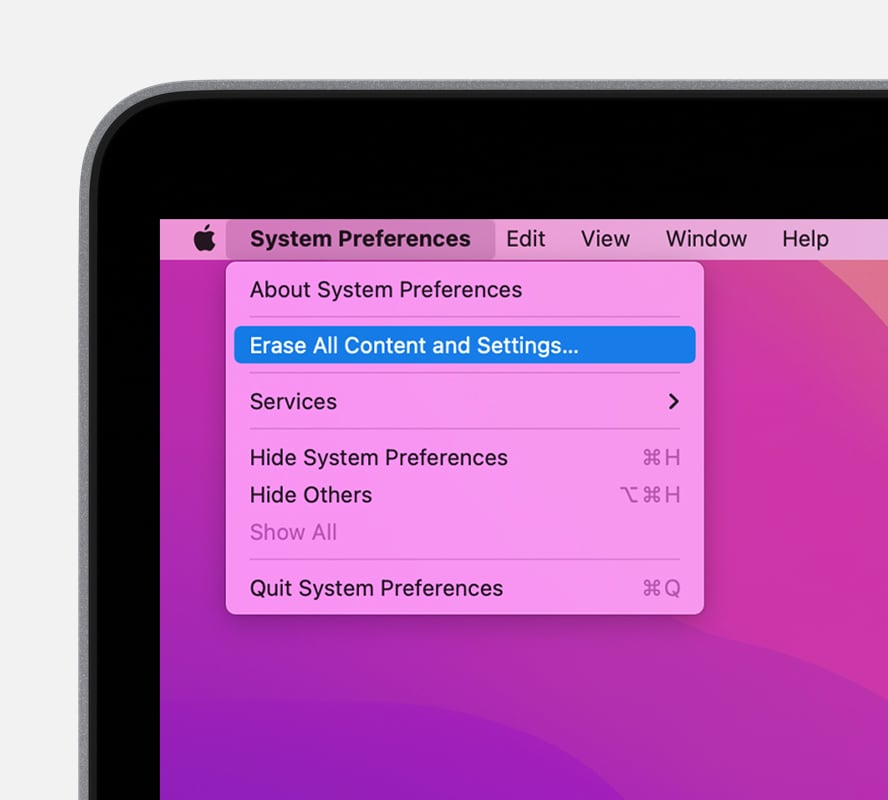
- Erase Assistant opens and asks you to sign in with your administrator credentials. Enter the password you use to log in to your Mac, then click OK.
- If you're asked to back up your Mac before resetting it, you can open Time Machine and back up to an external storage device. Or click Continue to proceed without making a new backup.
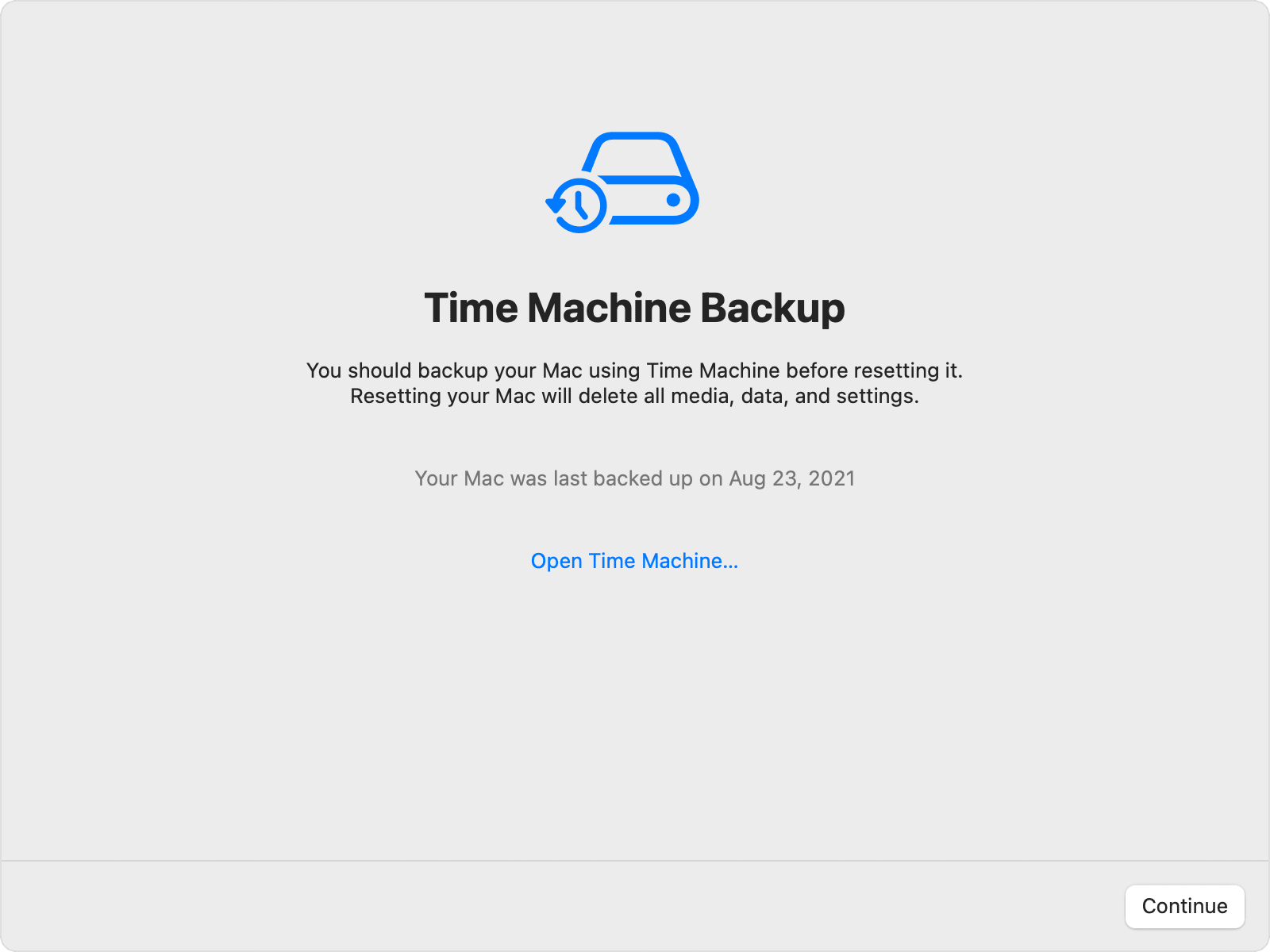
- Click Continue to allow your settings, media, data and the other listed items to be removed.
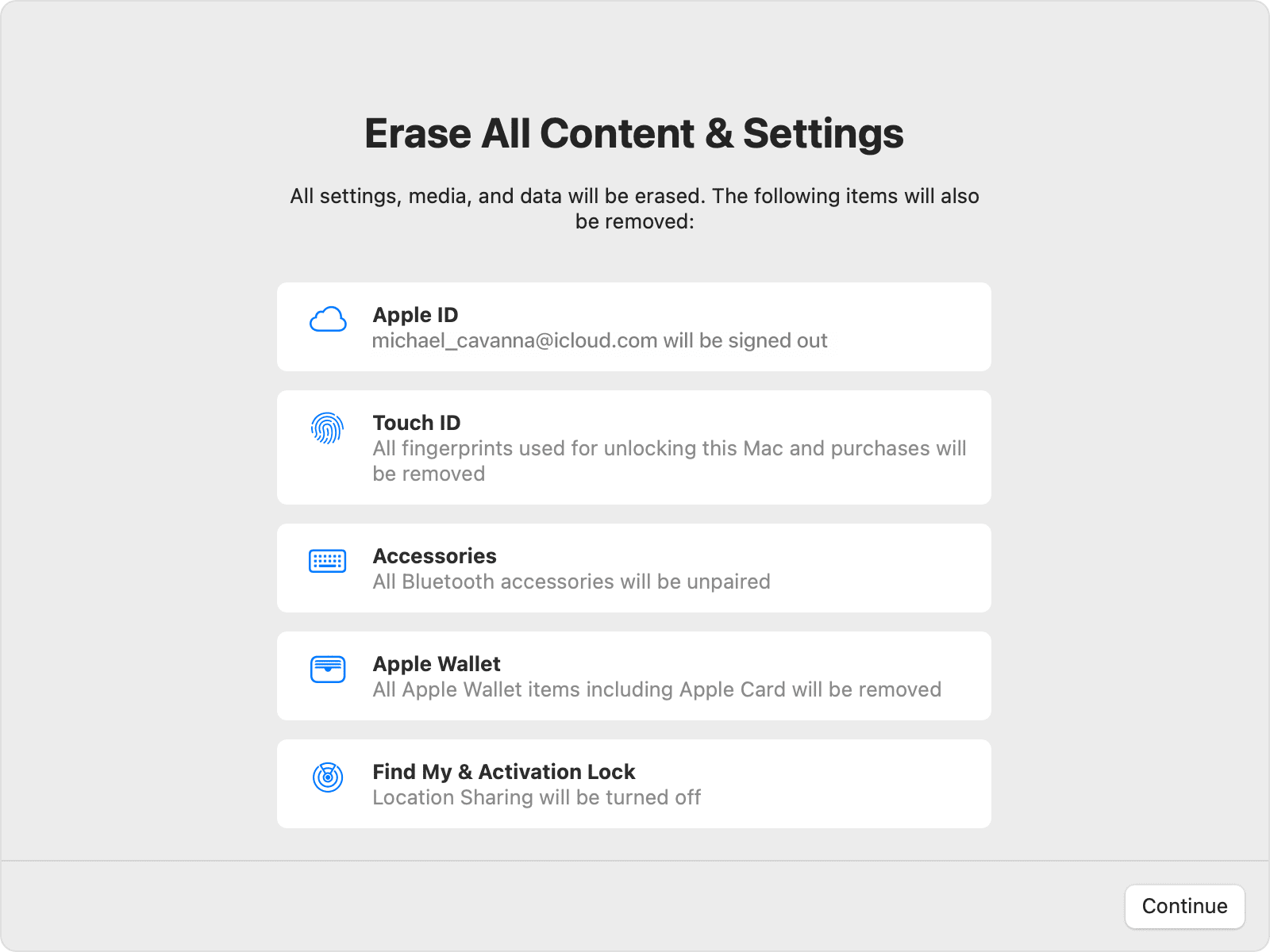
- If you're asked to sign out of Apple ID, enter your Apple ID password and click Continue.
- Click Erase All Content & Settings to confirm that you want to proceed.
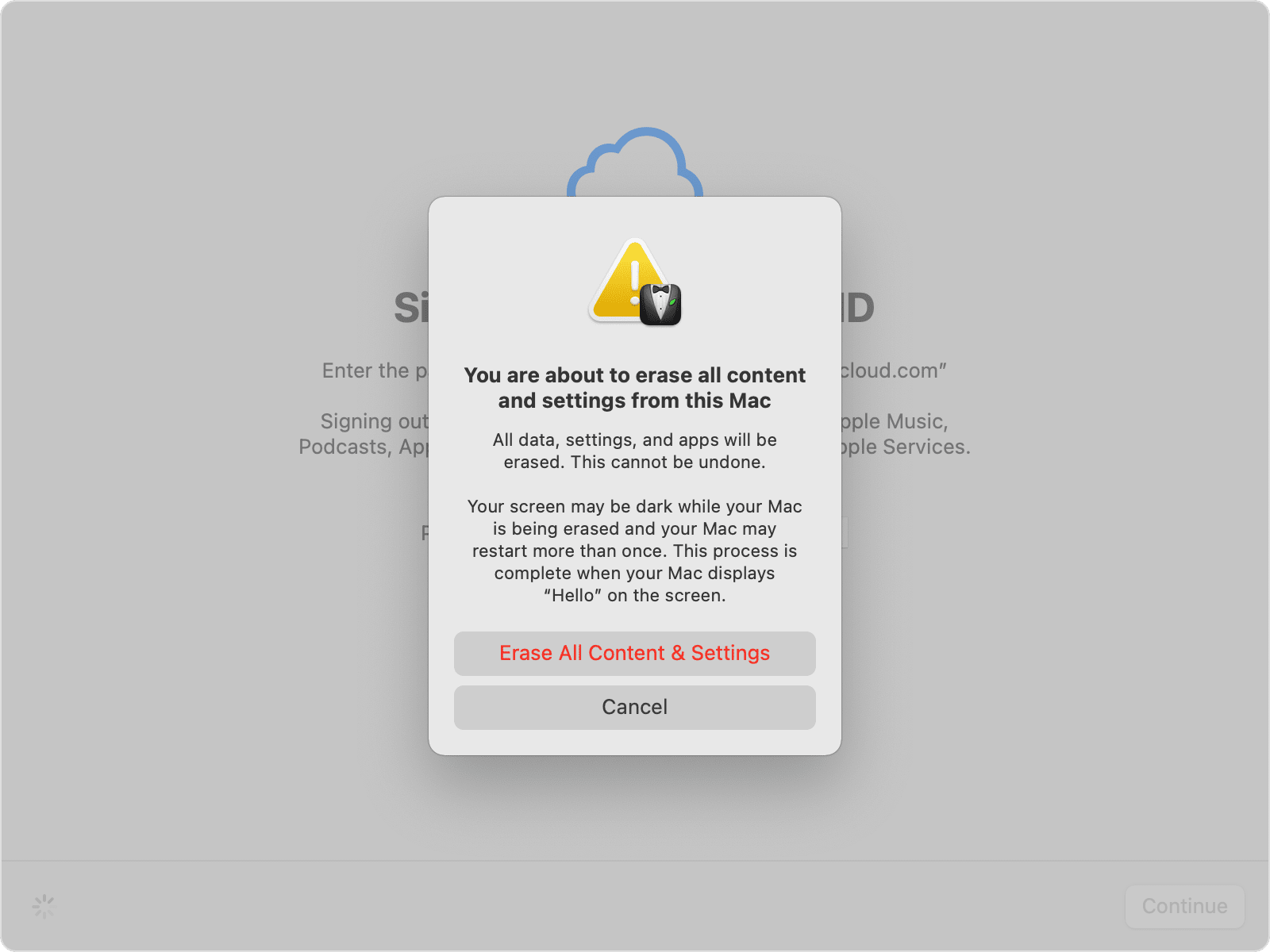
- Your Mac restarts and shows a black screen or progress bar. If it needs to reconnect to a Bluetooth accessory, such as a keyboard or mouse, you may be asked to turn on the accessory. If the accessory doesn't connect within 30 seconds, turn the accessory off and back on. When reconnecting to a Bluetooth keyboard, you're asked to choose a language.
- You may be asked to select a Wi-Fi network or attach a network cable. To select a Wi-Fi network, use the Wi-Fi menu
 in the top right-hand corner of the screen.
 - After joining a network, your Mac activates. Click Restart.
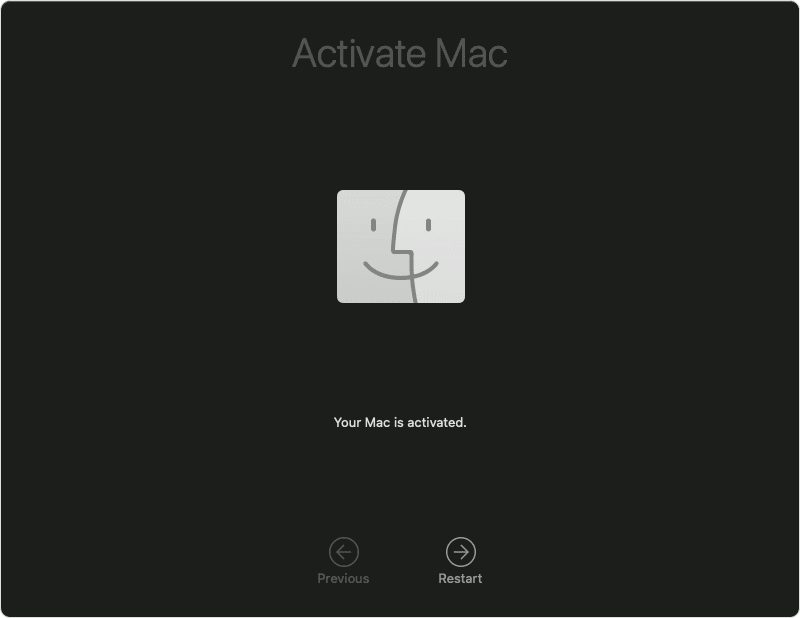
- After restart, the Mac starts as new and a setup assistant guides you through the setup process, as if you're setting up your Mac for the first time. If you are giving the Mac away – stop there and switch it off.
If you're selling, giving away or trading in your Mac and want to leave it in an out-of-box state, don't use the setup assistant or your previously connected Bluetooth devices, if any. Just press and hold the power button on your Mac until it turns off.
For older Macs
- Eject and disconnect any external devices like USB drives if you have any connected
- Restart the Mac and immediately hold down cmd-R (On M1 computers start by holding down the on/off switch for a few seconds and select Options)
- You may need to connect it to wifi or ethernet!!!
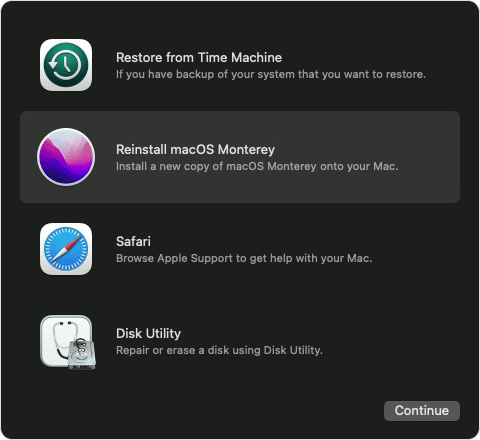
- You should see the recovery screen (below)
- Select Disk Utility
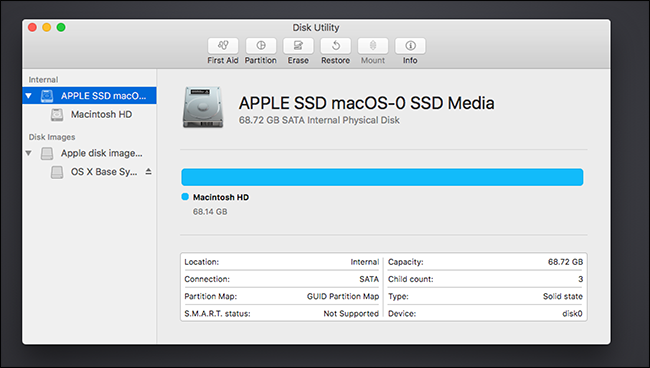
- In Disk Utility select the internal drive in the left sidebar (normally the first one, see pic below)
- Click Erase to wipe the drive clean, select APFS (no encryption)
- When complete, quit Disk Utility
- Select Reinstall macOS and press Continue
- This will take around an hour
Comments
0 comments
Please sign in to leave a comment.